I love tweaking Sublime Text. There are hundreds of settings you can change and I’ve blogged about a few of them before.
Here are five visual changes you can use to make your text editor just right. You should place these items inside your User settings file which can be located at preferences → Settings - User
1. Change the caret style
Who thought a caret could be sexy? Change your caret style to phase and it will fade in and out rather than blink.
"caret_style": "phase"
Other available options include “smooth”, “phase”, “blink”, “wide” and “solid”. I’ve been fond of “wide” which doesn’t blink and is clearly visible for screenshots in my new book.
2. Highlight current Line
This is one thing I wish Sublime Text enabled by default. Highlighting the current line is a subtle visual cue when jumping back and forth between a browser and code.
This is also super handy when you are dealing with long lines of code/text and you want to quickly know if the current line is wrapped or not.
"highlight_line": true
3. Increase the line height
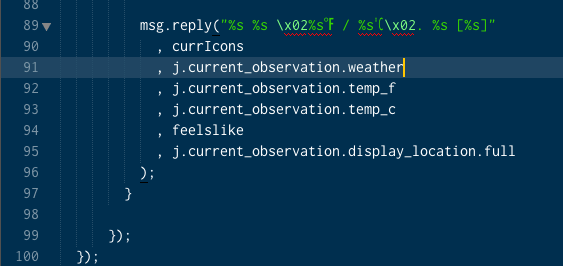
This trick adds just two pixels to each line, but increases the readability of code so much better. Might not be for everyone but I really enjoy this one.
"line_padding_bottom": 1, "line_padding_top": 1
4. Show Code folding arrows
Code Folding in Sublime Text is really great but I’ve noticed most people don’t use it as much as they do in editors because the arrows aren’t visible until you hover over the gutter.
Make them always visible and get folding!
"fade_fold_buttons": false

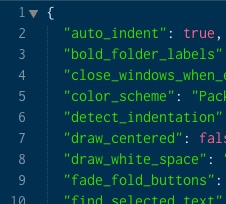
5. Bold Folder Labels
One of the downsides to Sublime Text is that the sidebar isn’t as strong as other editors. One visual cue that helps me out is bolding folders. This helps me quickly identify what is a folder and what is a file.
"bold_folder_labels": true


Great tips! Sublime Text is my go-to text editor. Your suggestions add some nice flair to an already stellar interface. Thanks!
Great tips, Sublime Text was the first editor I laid down cold hard cash for and haven’t regretted it. I’m excited to start working with these tweaks.
Really great write up. Small tweaks mean a lot when you’re coding for hours. Can’t wait to read the book
Thanks for writing the article, and the book! I look forward to it. I’m hoping you’ve got a section on Regular Expression! 🙂
Hey Wes, well done. I particularly like the highlight line option. That’s a really nice one. I can’t seem to get bold folder labels or fade folder buttons to work as you’ve indicated in the screencap. I use code folding regularly so the arrows aren’t important to me, but the folder labels would be valuable. Does it have to do with the font used? I’m currently using Adobe Source Sans Pro. Here’s my current Preferences file for reference:
http://pastebin.com/Y9LxcE41
That bizarre. Are you on windows/mac/linux? did you try restart sublime? (you usually don’t need to, but give it a shot).
To see if the setting is being applied properly, go to
view->show consoleand enter inview.settings().get('bold_folder_labels'). If its enabled properly it should return true.Make sure that you have downloaded and installed the bold version of Adobe Source Sans Pro, otherwise it will – indeed – not work.
Turns out that what it was. I went with another font (Ubuntu Mono) to try it out and installed the bold version. All of a sudden I noticed class names were bold and params were italics, etc. I was amazed.
Awesome tips 🙂 Thanks for helping to start my morning off on the right foot.
nice tips!
I’ve never been satisfied with the default styles of the sidebar in the Monokai theme (which is my favourite), so I redid them to better fit with Monokai, and created a gist:
https://gist.github.com/2935636
Thank you very much for the tips, Wes! I didn’t even know that there is code folding available in Sublime Text. So 4 and 5 were totally new (and helpful) to me.
Pingback: Weekly Tech and Science Links (#3) | Darker Nemesis
I can just recommend everyone who is using Sublime Text to look into the default settings file and look what’s available. You could’ve easily find out about this and much more by just scanning the existing options (which have a description, too).
Great Man..! This should be made the default setting of Sublime Text. Thanks
Pingback: This Week in WordPress: Jan 14, 2013 - Theme Customizer
What font and theme are you using?
My font is inconsolata and the theme is a custom one that I have released called cobalt2 – wesbos.com/cobalt2-theme-sublime-text-2/
Thanks for tweaks!
We are expecting more from you for the sublime. Thanks much.
Thanks!
Pingback: Sublime text 2 - mój zestaw ★ BobikoPL Blog
Thanks for every other fantastic article. Where else
may anyone get that type of info in such a perfect means of writing?
I’ve a presentation subsequent week, and I am on the search for such info.
Pingback: sublime text中5个外观设置小技巧 | yoclove
Hello! Do you know if they make any plugins to protect
against hackers? I’m kinda paranoid about losing everything I’ve worked hard on.
Any suggestions?
back up, back up, back up.
As for caret style, you can have both “wide” caret AND “phase” (highly recommended!):
“wide_caret”: true,
“caret_style”: “phase”
I did not know you could combine them like that. Awesome tip, thanks!
In sublime text 2, I don’t seem to be able to combine them like mentioned here. When I add that to my user preferences or the default sublime preferences, I get this error:
Error trying to parse settings: Expected value in ~/Library/Application Support/Sublime Text 2/Packages/Default/Preferences.sublime-settings:106:5
Any suggestions for getting both phase and wide?
Notice those quotes? They are not the ones that sublime uses, replace those with normal quotes and it’ll work.
u can’t change the default settings , u could write it in ur personal user setting .
How do I change the color of the cursor to make it yellow like the one you show in your screenshots?
This is part of my theme, Cobalt2: https://github.com/wesbos/cobalt2/
S-T 3 public beta hit the shelves today, just F everyone’s I. I’ve been using it for some time and it rocks, of course.
Hi Wes,
Nice to meet you. I noticed your post in the sublime text community.
I scrolled your website and I downloaded your Cobalt2 gitrepo settings in combination with your extra tweaks, and yes you are right. It’s a great theme!! 😉 Thanks.
I signed in for your sublime book. Keep on the good work.
Greetz from the Netherlands,
Ron
Any idea how to add more wrap padding to the right side of the Sublime Text window? It’s possible to change the gutter and margin size at left, but I don’t think that adjusts the space at the right side of the window.
Awesome tips! Thanks.
Hey nice tips. I really like that line padding tip, it really makes the code readable. Do you know any plugin that can make typing smooth? just like in MS Word 2013. That’ll be really great
Brilliant tweaks :). Works perfectly in Sublime Text 3
Looking forward to your new book 🙂
Cool, i needed all these tips. THANKS!
Wow. This article has more awesome and useful content for ST customization than most articles/videos I’ve seen thus far. I’m looking forward to your book. Thanks!
great tips!
Does anyone know if there is a way to change the background color of the line that is folded, the only reason i don’t use code folding is because it is so unclear what is folded and whats not, the arrows is the only visible cue.
Thank you!!! I was searching for adding line-height and found a lot more! 🙂
Sweet! Thanks for the tips!
Hey Wes, I’m just jumping into Coffescript on a current project and wondering if there’s any setting you know about to show the current row I’m tabbed to. This would make it a hell of a lot easier to scope the Coffescript indents correctly for long functions.
Thanks for all your suggestions above. Looking forward to the book..
-Tyler
I mean “column”, not “row”. 😉
Thanks for the nice tips!
Thanks. These tips all worked well on a 64-bit linux machine using Ubuntu 12.04. Actually the tip I was looking for (in addition to those you kindly provided!) was a shortcut to fold-all. I can’t get CTRL-k j (i.e. hold CTRL, hit k, hit j, release CTRL) to work, or for that matter CTRL-k 2 or any other level. Perhaps a shortcut conflict with Unity, but I am not sure.
how can i show more tabs?
THIS was great for me. Thank you!
Pingback: Don’t bring a banana to a gun fight – stepping your web dev game up with some tools and tricks of the trade | Proudfeet
Pingback: 5 great visual tweaks for Sublime Text | blog
Pingback: View your changes live in a browser while you edit in Sublime Text
Thanks for these tips! I didn’t know about any of these settings options.
I have read so many articles or reciews on the topic of the blogger loovers but this article is really a fastidious piece of writing, keep iit up.
Thank you!!!
To have a block cursor alike vim, add this to user settings:
“caret_extra_width”: 9,
You may choose the width is 8 to 10, it will be narrow and broader. It’s up to you 😀
Thanks dude. Still relevant!
Hi there would you mind letting me know which web
host you’re using? I’ve loaded your blog in 3 completely different web
browsers and I must say this blog loads a lot faster then most.
Can you suggest a good internet hosting provider at a fair price?
Thanks a lot, I appreciate it!
I do not even know how I stopped up here, but I thought
this post was great. I don’t recognize who you are
but certainly you are going to a famous blogger if you aren’t already.
Cheers!
You could always change the color of the sidebar you know. It’s not done by default in the default themes, but it’s available.
Does anyone know if it’s possible to change line-padding for different file types? I’d like a lot of padding for PHP and HTML files, but far less for Stylus files. Thanks!
great tips tnx
Great write up. Its very useful
Really nice tips. Thanks for the post.
I´m trying to modify Sublime to highlight modified sidebar labels.
I used this piece of code and it`s variations, like “sidebar_tree”, sidebar_tree_row etc., but it doesn´t work.
{
“class” : “sidebar_label”,
“settings”: [“highlight_modified_sidebar_label_row”],
“parents” : [{“class”: “sidebar_label_control”, “attributes”: [“dirty”]}],
“fg” : [245, 100, 90]
}
Very nice tips
Line highlighting doesn’t work in Distraction Free mode unless you enable the gutter in the Distraction Free user settings.
"gutter": trueAwesome…. Very useful tips.
Hey, good tips, thank you! 🙂
Really nice tips. Thanks for the post 👍
Really nice tips. Thanks 👍
Hi everyone in every new line , the line starts from the left margin, I want it to start after some space, what changes shoulld I make in settings??
Awesome tips. I just used all of these. The padding between lines makes the UI so nice.
“font_options”:
[
“directwrite”,
],
Windows.
Wow. This article has more awesome and useful content for ST customization than most articles/videos I’ve seen thus far. I’m looking forward to your book. Thanks!
…really useful tips to code in style
Thanks! All 5 tweaks a great!
Great tips, especially the line paddings, made my code much more easy to read! Thanks a lot!
Sick nasty bruh tks 4 teh gr8 teeps
good ones .. even after these many years !
got more ?
thanks, its work fine on my sublime, i use line padding 🙂